Workshop & Custom Maps Guide

Use the Steam Workshop to find and test community maps. Start with one map, run a private room, and confirm that all players have the same content available before treating a custom map as reliable session advice.
Quick Answer
Use the Steam Workshop as the safest map discovery surface. Check author, update date, screenshots, subscription path, and comments, then test one map in a private room before recommending it to friends.
Custom maps are useful only when the full group can access the same content. If one player cannot join or see the map, return to the private-server and lobby checklist before changing network settings.
Where to Find Workshop Maps
Start from the Steam Workshop linked through the Steam Community hub. Prefer map pages with recent updates, clear screenshots, visible creator information, and comments that match the current game version.
If an update changes maps, modes, or server selection, treat Workshop discovery as patch-sensitive. Check the current update hub first, then use Workshop screenshots and comments only as supporting context.
Map test visual
Judge custom maps by surfaces, paths, and room behavior.
Before recommending a Workshop map, look at the visible hiding surfaces, seeker paths, update date, and whether friends can load the same content in a private room.
Check update hub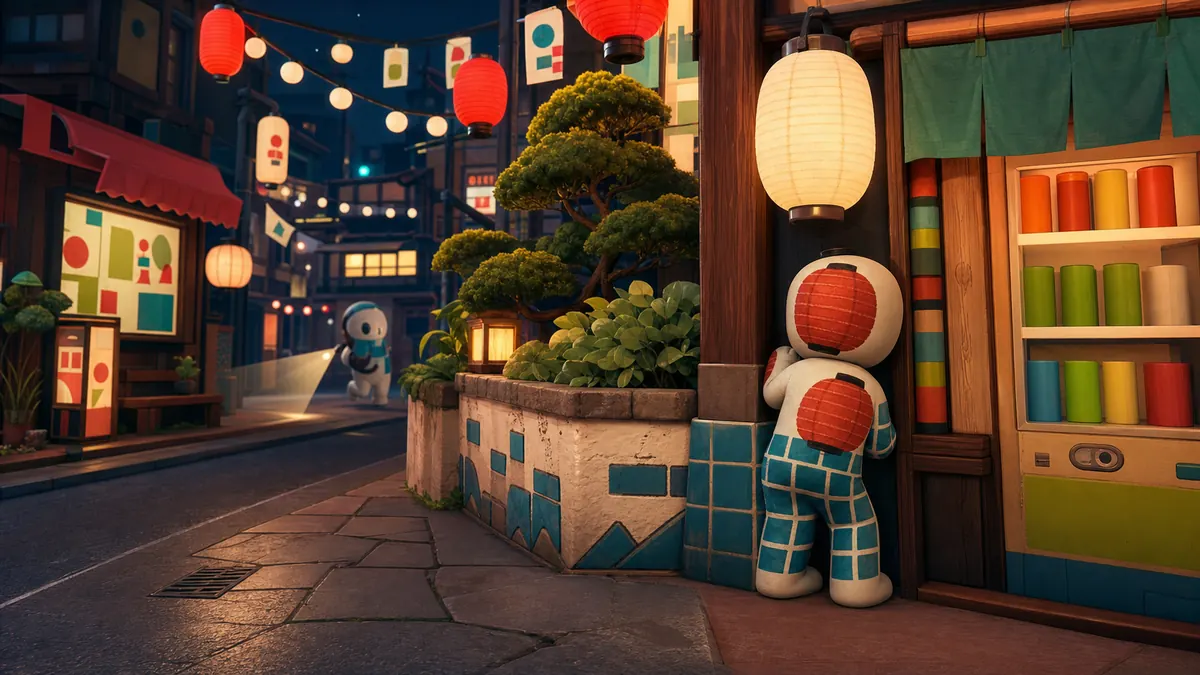
How to Test a Custom Map With Friends
Subscribe or open the map through Steam Workshop, not a third-party mirror.
Ask every player to use the same Workshop item or current Steam path.
Create a private room and check whether the map appears in the current map selector.
Run one short round to test spawn, hiding surfaces, timer pressure, and whether friends can rejoin.
Write down map name, author, update date, and any broken room behavior before sharing advice.
Common Problems
| Problem | Safe check | Next step |
|---|---|---|
| Map does not appear | Confirm everyone subscribed through Steam and restarted or refreshed the current game path. | Try one known official map before blaming Workshop. |
| Friend cannot join | Compare version, room visibility, invite path, map availability, and tags. | Open the lobby troubleshooting checklist. |
| Map feels unfair | Review surface density, seeker path, timer pressure, and player count. | Change one setting or map at a time. |
| Old guide conflicts with current UI | Check update date and current comments before copying instructions. | Use the maps update hub as the retest queue. |
Safety Notes
Do not download map files, executables, APKs, launchers, or private-server tools from this guide.
Do not share room passwords, Steam IDs, or Discord handles publicly while testing Workshop maps.
Treat screenshots and videos as context unless rights and date are clear.
Use the official Steam Store, Steam Community, Workshop, and News surfaces first.
Screenshot triage before testing a map
| Look for | Useful sign | Risk sign |
|---|---|---|
| Surface density | Walls, shelves, floors, and props create believable hiding choices. | Huge empty spaces where every player outline is obvious. |
| Path clarity | Seekers can scan routes without getting lost instantly. | Maze-like routes where first-time players cannot learn what happened. |
| Update date | Workshop item or comments line up with the current game version. | Old comments report broken loading or missing map selection after patches. |
| Group access | Every friend can find or subscribe to the same item before launch. | Only the host sees the map, or one player joins without the content. |
Patch impact for custom maps
When a patch mentions a map, mode, server list, or loading fix, re-test custom-map assumptions. Use one known official map as a control, then try one Workshop map with the same room settings. If only the Workshop map fails, record author, update date, map name, room settings, and the exact failure before changing network settings.
This keeps the page useful for players who arrived from a search result: they leave with a safe test sequence, not just a link to Workshop.
FAQ
Where should I look for MECCHA CHAMELEON custom maps?
Start with Steam Workshop from the Steam Community hub, then check update date, author, screenshots, and comments before testing with friends.
How do I test a custom map with friends?
Use one private room, confirm every player can access the same Workshop item, and run a short round before a longer session.
Does this guide host custom map downloads?
No. Use Steam and Steam Workshop only. This guide does not host map files, extracted assets, launchers, keys, or private-server tools.